
Complete company setup
The company setup wizard walks you through practice information, owner and team, general settings, insurance billing basics, facility mapping, and subscription configuration.
Before you start
- [ ] Your TherapyAlly membership is active
- [ ] You have your practice legal name and business address
- [ ] You know who the practice owner and initial team members are
- [ ] You have company NPI-2 and EIN if you will submit insurance claims
Steps
1. Open company setup
From the app drawer, go to Settings → Company, or open Company setup directly at /company/setup.
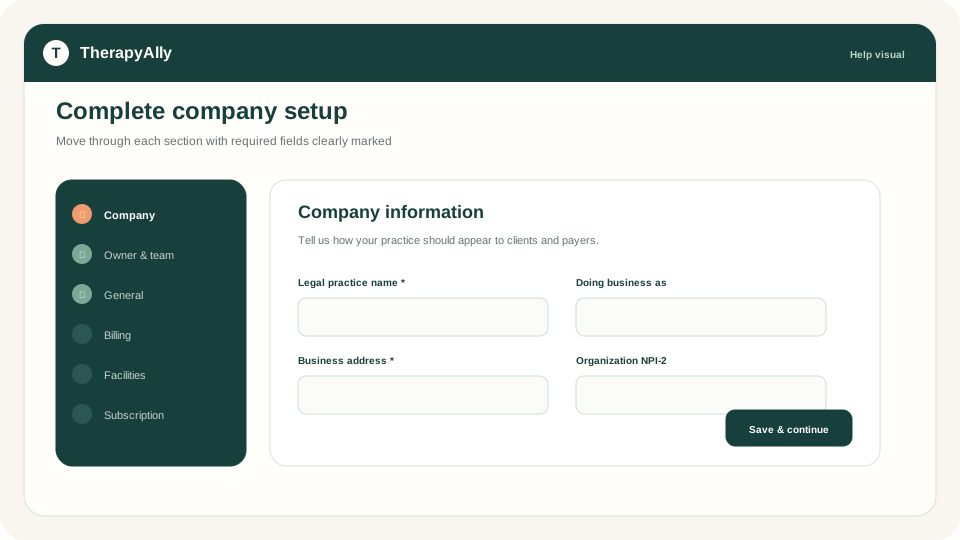
2. Company information
Enter your Company name, DBA (if different), and Business address. Add your company logo if you have one. It appears on client-facing materials.
Add NPI-2 here (10 digits) if the practice bills under an organization NPI. You can also enter it on RCM Settings. Claims require Company NPI-2 as the billing provider NPI. Do not leave it blank if you submit claims.
3. Owner and team
Add the practice owner and initial team members. Each rendering provider needs a valid NPI-1 and credentials for clinical and billing workflows later.
Mark the appropriate team member as the practice owner so TherapyAlly can assign administrative responsibility.
4. General settings
Set contact email, phone, website, and compliance flags. These appear on intake and client communications.
5. Insurance and billing settings
The wizard step is labeled RCM Settings (revenue-cycle settings).
Practice + Insurance unlocks billing entity fields, payer enrollments, eligibility, and claims. There is no separate enable switch. On Essentials you can skip this step and return later after you upgrade.
If Insurance is on your plan, add EIN (Employer ID), Tax ID Type, Billing Address, Company NPI-2, and payer enrollments when ready.
See Set up insurance and billing for codes, client insurance, Claim.MD transmit approval, and claim submit.
6. Facility mapping
Link your practice to therapy facilities if you share space. This step is optional for single-location clinics.
7. Subscription setup
Confirm your TherapyAlly platform subscription for this practice. Save each step before moving forward. The wizard validates required fields at every step.
After setup
When company setup is complete:
- Connect Stripe for payments
- Add your first client
- Configure intake templates
- Set up insurance and billing if your plan includes Insurance
Troubleshooting
| Issue | What to do | | --- | --- | | NPI validation error | NPI must be exactly 10 digits | | Cannot save owner team | Ensure at least one owner is marked and required fields are filled | | Missing subscription plans | Contact support if no plans appear. Your membership may need activation. | | Insurance fields locked | Upgrade to Practice + Insurance, then reopen RCM Settings | | Later claim says company NPI is missing | Add Company NPI-2 on RCM Settings even if company information allowed a blank value |